
In-person events and conferences
Deliver live captions or translated voice at an event by screen, QR code, browser URL, or subtitle camera.
Each JotMe account can host one live translation session at a time. A session follows one audio feed—for example, a panel discussion, keynote, or workshop. Everyone connected to that session can receive captions or translated voice in their chosen language, on a shared display, embedded in a speaker's camera feed, or on their own device.
Choose how to deliver the translation#
| Delivery method | Best for | What attendees receive |
|---|---|---|
| Shared screen or projector | An audience that can follow one translated language together | Show or share the maximized JotMe transcript window. No attendee setup is required. |
| QR code | Conferences, stages, and walk-in audiences | Put the code on a slide or sign. Attendees scan it and open the live translation in a browser. |
| URL | Direct invitations before or during the event | Send the joining link by calendar invitation, email, JotMe Chat, or any other messaging channel. |
| Subtitle Camera | Online or hybrid conferences where attendees can pin the speaker's video | Embed captions in the speaker's camera feed with OBS. Attendees watch the same caption language without opening a link. |
The QR code and URL open the same browser experience, and both can be generated before the event or while it is running. Attendees do not need JotMe accounts, and each person can select the language they want to receive. Follow the URL guide or QR code guide for its setup.
To keep the URL and QR code attached to a scheduled event, start from Calendar. For when the link becomes active and how to share it through chat, see Share with a URL.
For an online or hybrid conference, Subtitle Camera is useful when attendees can pin the speaker's video. The captions remain visible inside that feed as the meeting layout changes. It requires OBS; follow the Subtitle Camera setup.
Choose Caption or Voice#
- Caption lets attendees read the original speech and live translation. This is usually the simplest choice for a large audience.
- Voice provides voice-to-voice translation on each attendee's device while the translated transcript remains visible. Provide each attendee with an earpiece or headphones so translated audio does not play back into the event microphone.
The host selects one of these modes before sharing. See Captions or voice for the actual participant UI and controls.
Heads up
Translation sent to attendee devices is multiplied by the participant count. When Fast (Audio) is selected, it consumes 5× live translation minutes per participant whether translated audio is on or off.
Use Event pricing to enter the number of concurrent hosts, event hours, delivery method, and audience size. It calculates the required live translation minutes and an estimated Team plan price in one place.
Run the conference or event#
For an on-site conference or event, use one host computer for each stage, room, or audio feed. Select the microphone or event audio source you tested during rehearsal, choose Caption or Voice, then prepare the screen, QR code, URL, or Subtitle Camera feed you plan to use.
Before starting, open Settings → Live translation → Your environment and choose Events. Events uses the in-person microphone setup, hides speaker names, shows only translations, and turns off same-language output. Choose In-person instead when participants need speaker labels for a smaller face-to-face conversation.
For an online or hybrid conference, run JotMe alongside the meeting platform. See the online meeting setup.
Present on a shared screen or projector#
Use this setup when everyone can follow the same translated language. The audience only needs to see the shared display; they do not need a link, account, or device.
Choose the languages
In JotMe Desktop, select the language being spoken and the language you want to show to the audience.
Start live translation
Click Start live translation and confirm that the translated transcript is updating correctly.
Maximize the transcript
In the Transcript panel, click Maximize Transcript Window—the square icon in the upper-right controls.
Present the translated transcript
Move the maximized JotMe window to the display connected to your projector or presentation screen. For an online or hybrid event, select that window or display in your meeting platform's screen-sharing controls.
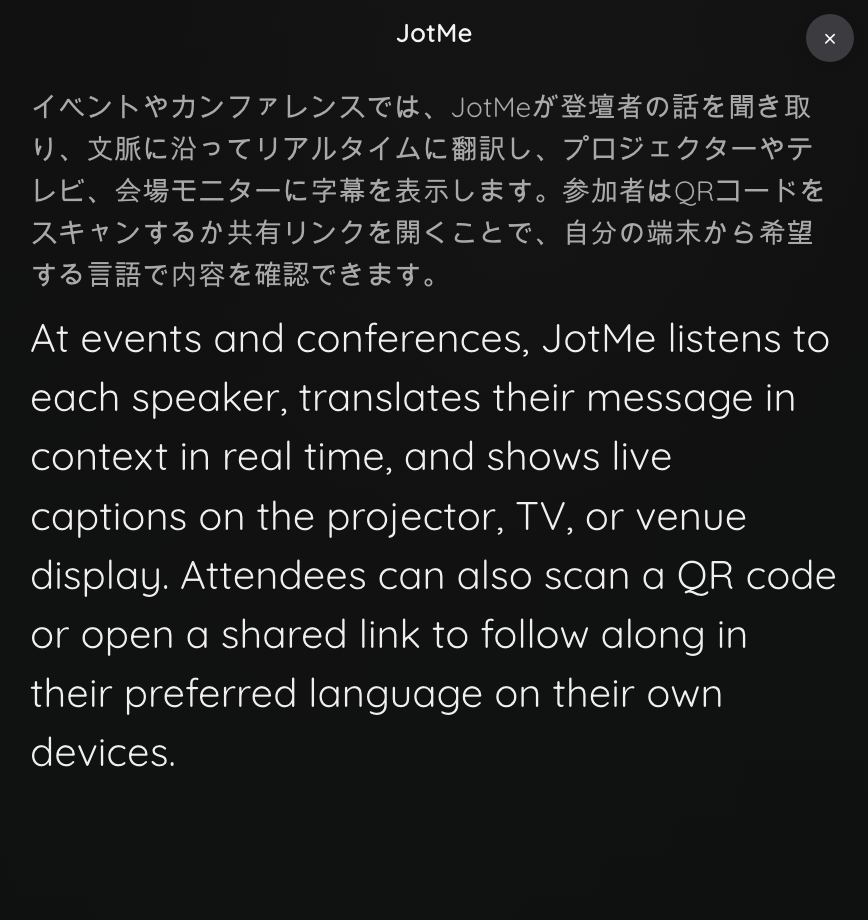
This is what the maximized transcript window looks like on the presentation display:
To show PowerPoint slides alongside the translated transcript, follow PowerPoint Live Translation. The guide includes the windowed slide-show settings and how to share both windows with remote participants in Zoom.
For a webinar or slide-based presentation, the display workflow is similar, but the production setup is different. See Share a JotMe display with a presentation.
Tip
Keep the transcript visible throughout the session. If attendees need different languages, share a QR code or URL instead so each person can choose their language.
What matters at event scale is the staging:
- Display the QR code or joining URL before you start speaking, not once the audience is already listening.
- Leave it on screen through the introduction, so late arrivals can still join.
Before the doors open#
- Run a rehearsal with the exact microphone and session setup; audio routing is the thing that fails on the day.
- Test the attendee browser flow on a phone and test Voice with headphones if you plan to offer it.
- Confirm that your plan has enough live translation minutes for the audience and event duration.