
PowerPoint Live Translation
Show PowerPoint slides and JotMe's live translated captions side by side when sharing your screen in Zoom.
Show your PowerPoint slides and JotMe's live translation together so participants can follow your presentation and read the translation of your speech on the same screen. These steps and screenshots use PowerPoint on Windows.
Before you start#
Open JotMe Desktop, choose your spoken and translation languages, and start live translation. Confirm that your speech appears in the transcript. For audio and microphone setup, see Zoom, Teams, Meet, and other online meetings.
Set up PowerPoint and share your screen#
Open the Slide Show tab
Open your presentation in PowerPoint and select Slide Show in the ribbon.
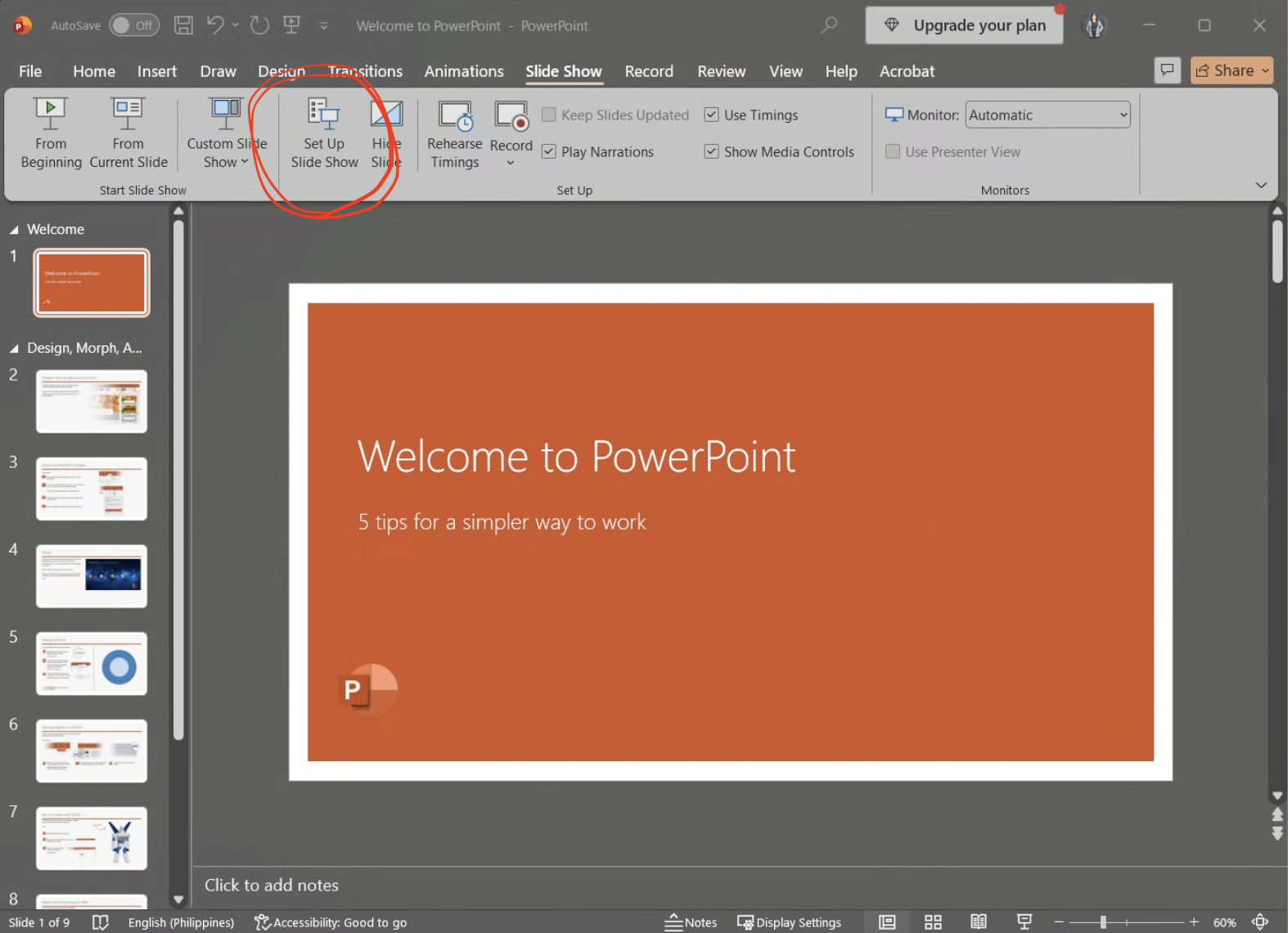
Click Set Up Slide Show
In the Slide Show tab, click Set Up Slide Show.
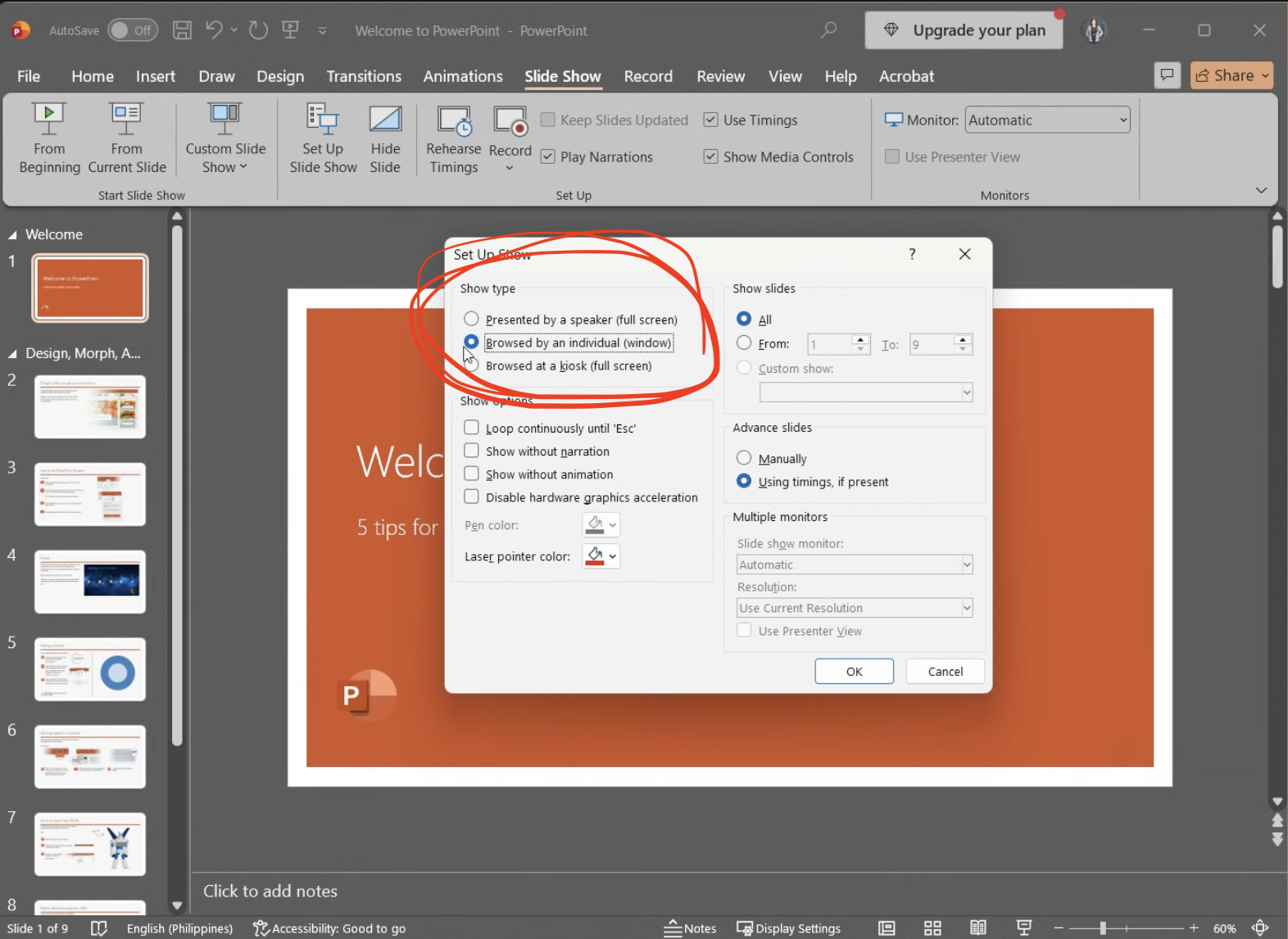
Choose a windowed slide show
Under Show type, select Browsed by an individual (window) and click OK. This lets you resize the slide show and leave room for JotMe beside it.
Start the slide show
Start your slide show using From Beginning or From Current Slide. The presentation opens in a window.
Arrange PowerPoint and JotMe side by side
In JotMe's Transcript panel, click Maximize Transcript Window—the square icon in the upper-right controls—to open the separate transcript window. Arrange the PowerPoint slide show and JotMe transcript side by side on the same screen. Resize them so both the slides and translated text are readable.
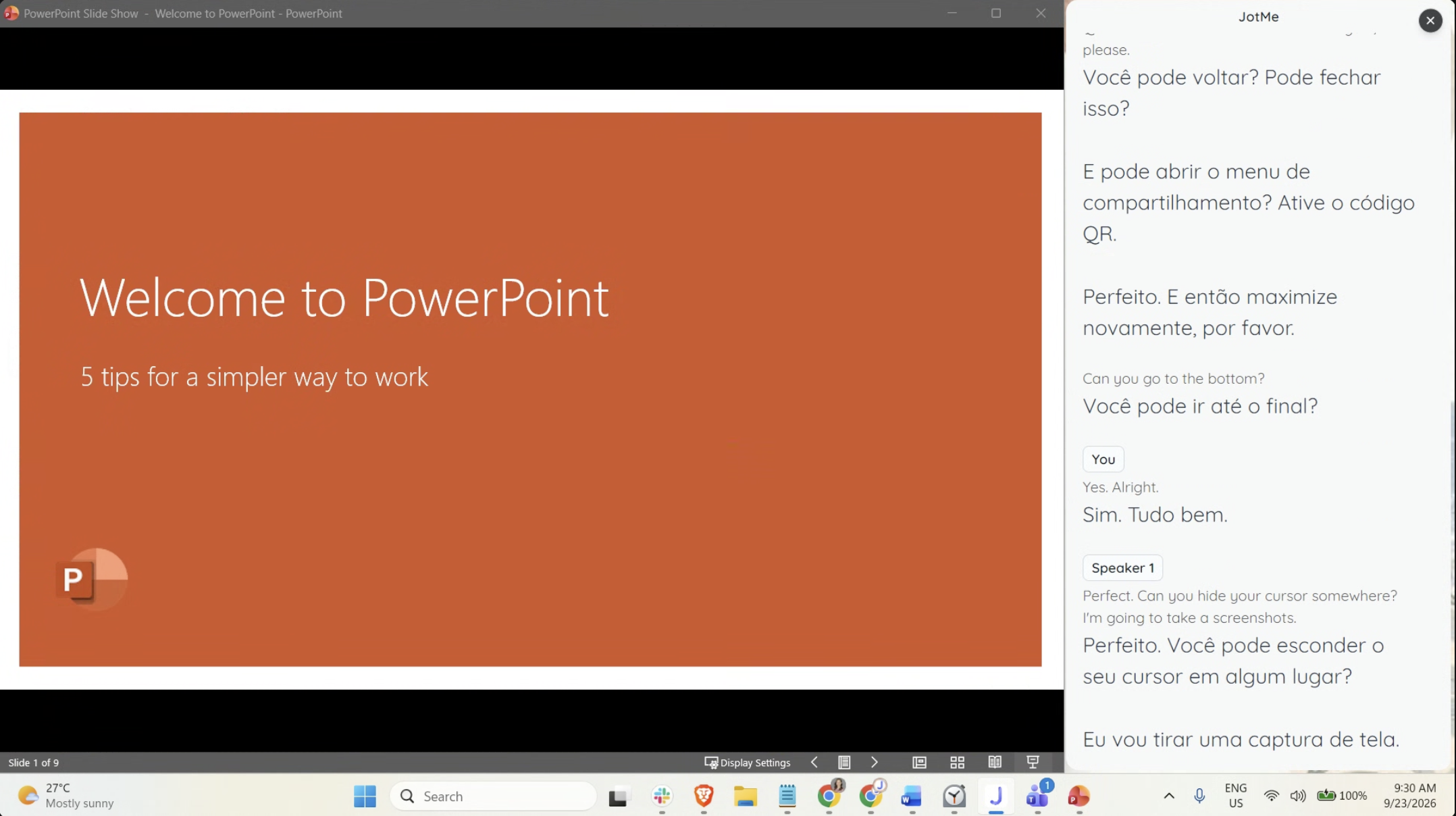
Share your entire screen in Zoom
In Zoom, click Share Screen and select the entire screen containing both windows. Click Share so participants can see your slides and the JotMe transcript together. If you have multiple monitors, select the one where you arranged both windows.
Check the participant view#
Confirm that participants can see both windows and read the translated text as you speak. Keep JotMe visible while advancing your slides. If participants can only see PowerPoint, change Zoom's sharing selection to the entire screen containing both windows.
Everyone viewing the shared screen sees the same translation language. For individual language choices, share a URL or QR code so participants can follow the translation on their own devices.